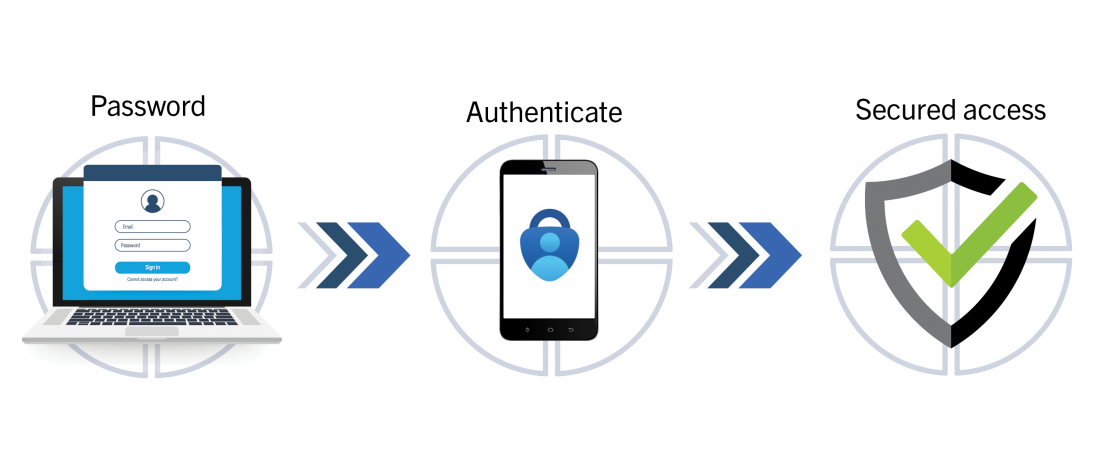
If you do one thing for your business’s cybersecurity this year, enable multi-factor authentication on every account.
That’s not an exaggeration. Multi-factor authentication for Edmonton businesses is the single highest-impact, lowest-cost security control available — and most small businesses still haven’t fully implemented it. According to Microsoft, MFA blocks over 99.9% of automated credential attacks. Not most. Over 99.9%.
This post explains exactly what MFA is, why it matters for Edmonton and Alberta businesses in 2026, and how to get it set up across your organization.
What Multi-Factor Authentication Actually Is
Multi-factor authentication — MFA — means requiring more than just a password to log into an account. Instead of one factor (something you know — your password), MFA adds a second factor:
- Something you have — a code sent to your phone, an authenticator app, a physical security key
- Something you are — a fingerprint or face scan
So even if an attacker has your password — whether they got it through a phishing attack, a data breach, or by guessing — they still can’t get into your account without that second factor.
This is why MFA is so effective. The vast majority of cyberattacks rely on stolen or guessed credentials. MFA makes those credentials worthless on their own.
Why Multi-Factor Authentication Matters for Edmonton Businesses in 2026
Edmonton businesses face the same credential-based attacks as enterprises, but typically with far fewer defences. Here’s the reality:
Passwords alone are not secure. The average person reuses passwords across multiple accounts. When one service gets breached — and major breaches happen constantly — those credentials get sold on the dark web and tested against thousands of other services automatically. If your Microsoft 365 password is the same as your LinkedIn password, and LinkedIn gets breached, your entire business email environment is at risk.
Attackers are automated. Credential stuffing attacks — where attackers test millions of username and password combinations against business accounts — run 24 hours a day. Without MFA, it’s only a matter of time before a match is found.
The consequences are severe. A compromised Microsoft 365 account gives an attacker access to your email, your files, your contacts, your calendar, and potentially your financial systems. We’ve covered how ransomware often starts with exactly this kind of credential compromise — a stolen password leads to network access, which leads to encryption and a ransom demand.
Cyber insurance now requires it. Many Alberta business cyber insurance policies now list MFA as a mandatory requirement. Businesses without MFA on key accounts may find their claims denied after an incident.
The Different Types of MFA — Which Is Right for Your Business
Not all MFA is equal. Here’s how the main options compare:
Authenticator App (Recommended)
Apps like Microsoft Authenticator or Google Authenticator generate a time-sensitive six-digit code every 30 seconds. When you log in, you enter your password and then open the app to get the current code.
This is the most practical option for most Edmonton SMBs — it’s free, works without cellular service, and is significantly more secure than SMS codes.
SMS Text Message
A code is sent to your phone via text. You enter the code to complete login. This is better than no MFA, but it has known vulnerabilities — SIM swapping attacks can intercept SMS codes, and it requires cell service.
Hardware Security Key
A physical USB or NFC device (like a YubiKey) that you plug in or tap to authenticate. The most secure option, but also the most expensive and least convenient for most SMBs.
Biometrics
Fingerprint or face recognition on a device. Commonly used as a second factor on mobile devices. Convenient but limited to specific hardware.
For most Edmonton SMBs: Microsoft Authenticator app on all accounts is the right balance of security and practicality.
How to Enable MFA on Microsoft 365
Microsoft 365 is the most common platform used by Edmonton small businesses, and enabling MFA across your organization is straightforward.
For administrators:
- Go to the Microsoft 365 Admin Center
- Navigate to Users → Active Users
- Click Multi-factor authentication at the top
- Select all users and click Enable
- Communicate the change to your team and give them time to set up the Microsoft Authenticator app before the deadline
For individual users:
- Go to mysignins.microsoft.com
- Click Add sign-in method
- Select Authenticator app
- Follow the setup steps on your phone
Best practice: Enable MFA for all users, but prioritize admin accounts first — these have the most access and are the highest-value targets for attackers.
What Happens After MFA Is Enabled
The transition is straightforward. The first time each user logs in after MFA is enabled, they’ll be prompted to set up their second factor. After that, login works like this:
- Enter username and password as normal
- A notification appears on their phone via the Authenticator app
- They approve it with one tap
- They’re in
For most users, the extra step takes about three seconds. The friction is minimal. The protection is enormous.
One important note: make sure your team knows what to do if they get an MFA approval request they didn’t initiate — someone is trying to log into their account with a known password. They should deny it immediately and contact IT.
Common Objections — And Why They Don’t Hold Up
“It’s inconvenient.” The Microsoft Authenticator app takes three seconds to approve a login. This is a reasonable trade-off for blocking 99.9% of automated attacks.
“Our employees don’t have work phones.” The Authenticator app can be installed on a personal phone — the app itself doesn’t give your business access to the employee’s personal device. Alternatively, hardware security keys can be used.
“We’re too small to be targeted.” Credential attacks are fully automated. Attackers aren’t manually targeting your business — bots are testing millions of accounts simultaneously. Size doesn’t matter to a bot.
“We already have a strong password policy.” Strong passwords help, but they can still be phished, guessed, or stolen in a data breach. MFA protects you even when the password is compromised.
Multi-Factor Authentication for Edmonton Businesses: The Bottom Line
Enabling MFA is not a complex, expensive project. For most Edmonton businesses running Microsoft 365, it can be fully deployed in a day. The cost is effectively zero if you’re already paying for Microsoft 365 — the tools are built in.
What it protects against:
- Phishing attacks that steal passwords
- Credential stuffing from dark web breaches
- Brute force password attacks
- Unauthorized remote access
What it doesn’t replace: MFA is one layer of a complete cybersecurity strategy. It should be combined with proper email filtering, endpoint protection, employee training, and regular backups. But it’s the most important layer to get in place first.
Is Your Business Protected?
- Is MFA enabled on every Microsoft 365 account in your organization?
- Are admin accounts protected with MFA?
- Does your team know what to do when they receive an unexpected MFA request?
- Are any legacy applications in your environment bypassing MFA?
If you’re not sure about any of those, it’s worth getting a proper assessment done.
Frequently Asked Questions
Does MFA completely prevent account takeovers? MFA blocks the vast majority of attacks, but no single control is 100% effective. Sophisticated attackers can use real-time phishing kits that intercept MFA codes. This is why MFA should be combined with other controls, not treated as a complete solution on its own.
What if an employee loses their phone? Backup authentication methods should be set up during initial MFA enrollment — including backup codes or an alternate device. Your IT administrator can also reset MFA for a user if needed.
Does MFA work for remote employees? Yes — MFA works regardless of where the user is logging in from. In fact, it’s especially important for remote workers since they’re accessing systems from networks outside your direct control.
How long does MFA setup take for a small business? For most Edmonton SMBs using Microsoft 365, a full MFA rollout across the organization typically takes less than a day with proper planning and communication.
GuidePost Can Help
GuidePost Technologies helps Edmonton and Sherwood Park businesses implement multi-factor authentication properly — including planning the rollout, communicating the change to staff, configuring conditional access policies, and making sure no accounts are left unprotected.
MFA is one component of our broader cybersecurity services for Alberta businesses — alongside email security, endpoint protection, employee training, and 24/7 monitoring.
Explore our Cybersecurity Services →
Call us at 780-851-5000 to book a free cybersecurity assessment.
GuidePost Technologies — Managed IT Services, Cybersecurity, Cloud Computing, and Network Support for Edmonton and Alberta Businesses.
6 Reply on “Multi-Factor Authentication: The Single Most Effective Thing Edmonton Businesses Can Do Right Now”