If your Edmonton business is still emailing documents back and forth, saving files on individual laptops, or using a shared drive that nobody can find anything in, you already own the solution — you’re just not using it.
SharePoint for Edmonton SMBs is included with every Microsoft 365 business subscription, yet it remains one of the most underutilized tools in the entire platform. Most businesses default to saving files locally or in scattered OneDrive folders, missing the structured, secure, collaborative file management system they’re already paying for. This post explains what SharePoint actually does, why it matters for Alberta SMBs, and how to set it up so your team actually uses it properly.
What SharePoint Actually Is
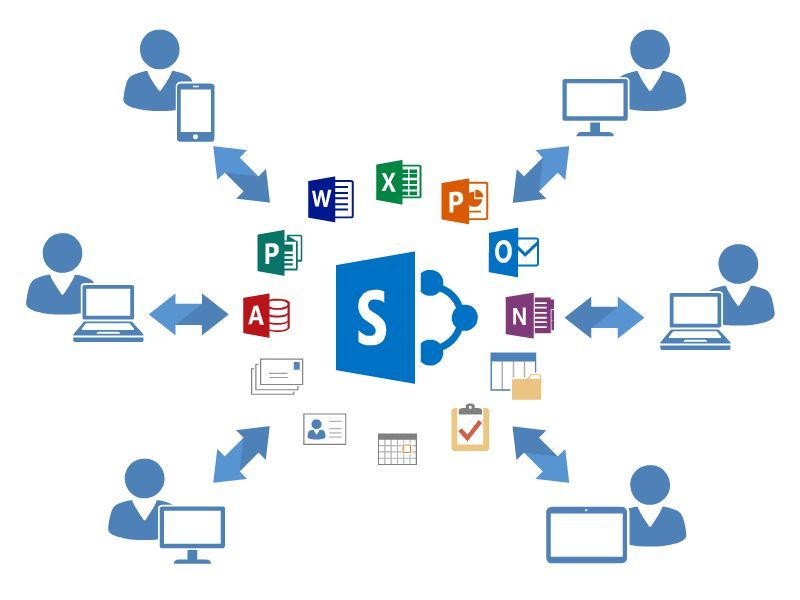
SharePoint is Microsoft’s cloud-based platform for storing, organizing, sharing, and collaborating on files and information across your organization. Every time you create a team in Microsoft Teams, a SharePoint site is created automatically behind it — which is why understanding SharePoint properly also makes Microsoft Teams work better.
At its core, SharePoint gives Edmonton businesses:
- Centralized file storage — one place for company documents instead of scattered across individual computers
- Document libraries — organized folders with version history, permissions, and metadata
- Real-time collaboration — multiple people editing the same document simultaneously
- Intranet and company pages — internal sites for policies, announcements, and resources
- Workflow automation — through integration with Power Automate for approval processes and notifications
- Granular permissions — controlling exactly who can see and edit specific files or folders
For most Edmonton SMBs, the file storage and collaboration functions are what matter most day to day. The intranet and workflow features become valuable as the business grows.
Why Edmonton Businesses Need SharePoint, Not Just OneDrive
This is one of the most common points of confusion for SMBs adopting Microsoft 365. OneDrive and SharePoint look similar and are technically built on the same underlying technology, but they serve different purposes.
OneDrive is for individual file storage — your personal documents, files you’re working on alone, content that doesn’t need broad team access. Think of it as your personal cloud drive.
SharePoint is for shared organizational content — files that the team, department, or company needs to access. Contracts, policies, client files, project documentation, financial records — these belong in SharePoint, not in someone’s personal OneDrive.
The mistake many Edmonton businesses make is storing shared company files in individual employees’ OneDrive accounts and then sharing links. This creates serious problems: when that employee leaves, the files often leave with them or become inaccessible. There’s no consistent permission structure. There’s no central place for other employees to find what they need.
SharePoint solves this by making the company — not the individual — the owner of shared business files.
How Edmonton SMBs Should Structure SharePoint
A poorly organized SharePoint environment is almost as frustrating as no organization at all. Here’s how Edmonton businesses should think about structure:
Department or Team-Based Sites
Create a SharePoint site for each department or major team — Finance, Operations, Sales, HR. Each site has its own document library, permissions, and can have its own internal pages for department-specific information.
Project-Based Document Libraries
For project-driven businesses — construction, consulting, professional services — a document library structure organized by project, with consistent subfolder naming (Contracts, Invoices, Correspondence, Deliverables) makes it easy for anyone on the project to find what they need without searching.
Client or Customer Folders
For businesses managing multiple client relationships, a structured client folder system within SharePoint — with appropriate permission restrictions — keeps client information organized and secure. This is particularly important for legal, accounting, and consulting businesses where client confidentiality matters.
Company-Wide Resources
A central site for HR documents, company policies, templates, and resources that every employee needs access to, separate from department-specific or project-specific content.
SharePoint Security for Edmonton Businesses
Because SharePoint often contains your business’s most sensitive information — contracts, financial records, client data, HR files — security configuration matters significantly.
Permission management — SharePoint allows granular permissions down to the individual file level. However, the more granular permissions get, the harder they are to manage consistently. Most Edmonton SMBs are better served by permission structures based on groups (Finance team, Management, All Staff) rather than individual file-by-file permissions.
External sharing controls — SharePoint allows sharing files with people outside your organization, which is useful but needs to be controlled. Default settings that allow anyone with a link to access files can create serious data exposure. External sharing should be restricted to specific people or domains wherever possible.
Sensitivity labels — Microsoft 365 allows you to apply sensitivity labels to documents — confidential, internal only, public — that can automatically apply encryption and restrict sharing based on classification. For businesses handling sensitive client or personal information under Alberta’s PIPA, this is a valuable control.
Version history and recovery — SharePoint automatically maintains version history for documents, meaning accidental changes or deletions can be recovered. This is a meaningful protection against both human error and certain types of ransomware that specifically target file systems.
MFA enforcement — As covered in our MFA guide, MFA on Microsoft 365 accounts protects SharePoint along with every other connected service. A compromised account without MFA gives an attacker direct access to your entire document library.
Common SharePoint Problems Edmonton Businesses Face
“Employees Can’t Access Shared Files”
This is almost always a permissions issue. Either the employee wasn’t added to the right SharePoint group, the site permissions weren’t configured correctly when it was set up, or the file was shared individually rather than through the proper group structure. A clean permission audit usually resolves this quickly.
“We Have Too Many Versions of the Same File”
This typically happens when SharePoint isn’t being used as intended — files get downloaded, edited locally, and re-uploaded rather than edited directly in SharePoint or through the synced folder. Training your team to edit files directly in SharePoint, or through the OneDrive sync client, eliminates this problem because SharePoint’s built-in version history handles revisions automatically.
“Search Doesn’t Find What We’re Looking For”
SharePoint search works well when files have clear, consistent naming conventions and are organized logically. If your environment has years of inconsistently named files dumped into folders without structure, search will struggle. This typically requires a cleanup project — archiving old content and establishing naming conventions going forward.
“Migrating Our Old Files Was a Mess”
Migrating from a local server, an old file share, or another cloud platform into SharePoint requires planning — particularly around permissions, folder structure, and what content actually needs to move versus what can be archived. We’ll cover this in detail in our upcoming Microsoft 365 migration guide.
SharePoint vs a Traditional File Server
Many Edmonton businesses transitioning from an on-premises file server to SharePoint ask whether it’s actually better. In almost every case for an SMB, yes:
Accessibility — SharePoint is accessible from anywhere with an internet connection, unlike a traditional server that typically requires VPN access for remote work.
No hardware to maintain — A file server requires hardware maintenance, backup management, and eventually replacement. SharePoint eliminates that infrastructure entirely.
Built-in collaboration — Real-time co-editing, comments, and version history come standard. Traditional file servers require additional software to achieve similar functionality.
Disaster recovery — SharePoint data is stored in Microsoft’s redundant cloud infrastructure, providing far stronger resilience than most SMBs can achieve with on-premises hardware. This complements but doesn’t replace the dedicated backup strategy covered in our data backup guide.
Frequently Asked Questions
Should I use OneDrive or SharePoint for my business files? Use OneDrive for personal, individual work. Use SharePoint for any files that need to be accessed by a team, department, or the whole company. If more than one person needs regular access to a file, it belongs in SharePoint.
How do I set up SharePoint for my business? A proper SharePoint setup involves planning your site structure based on departments or projects, configuring permission groups, setting up sensitivity labels if needed, and training your team on how to use it. This is typically done as part of a broader Microsoft 365 setup engagement.
How do I move files to the cloud from our old server? Migration requires assessing what currently exists, planning the new SharePoint structure, mapping old permissions to new groups, and executing the migration in a way that minimizes disruption. This should be planned carefully rather than done as a simple drag-and-drop transfer.
Can SharePoint replace our file server entirely? For most Edmonton SMBs, yes. SharePoint combined with OneDrive covers the vast majority of file storage and collaboration needs without on-premises hardware. Specialized line-of-business applications that require local file access are the main exception.
Is SharePoint secure enough for sensitive client data? Yes, when properly configured. SharePoint includes encryption, granular permissions, sensitivity labels, and audit logging. The security comes from proper configuration — default settings are not sufficient for sensitive data and need to be reviewed by someone who understands the platform.
GuidePost Can Help
GuidePost Technologies sets up and manages SharePoint for Edmonton and Sherwood Park businesses — including site structure, permissions, security configuration, and migration from existing file servers or other platforms. This is part of our broader Microsoft 365 services and managed IT services.
Explore our Microsoft 365 Services →
Call us at 780-851-5000 to book a free Microsoft 365 assessment for your business.
GuidePost Technologies — Managed IT Services, Cybersecurity, Cloud Computing, and Network Support for Edmonton and Alberta Businesses.
2 Reply on “SharePoint for Edmonton SMBs: The File Storage Tool You’re Probably Underusing”