Moving your business to Microsoft 365 sounds simple on paper. In practice, a poorly planned migration can mean lost emails, missing files, confused employees, and days of productivity disruption — all of which is entirely avoidable with proper planning.
Microsoft 365 migration for Edmonton businesses has become one of the most common IT projects we handle, whether a business is moving from an on-premises Exchange server, switching from Google Workspace, consolidating multiple email systems after an acquisition, or simply upgrading from an outdated Microsoft 365 setup that was never configured properly. This post breaks down what a proper migration actually involves, the common mistakes that cause disruption, and what Edmonton businesses should expect from the process.
What Triggers a Microsoft 365 Migration
Edmonton businesses typically need a Microsoft 365 migration for one of several reasons:
Moving from an on-premises server — Many Alberta SMBs still run on-premises Exchange servers or local file servers that are aging, expensive to maintain, and increasingly risky from a security standpoint. Migrating to Microsoft 365 eliminates the hardware maintenance burden and provides far stronger built-in resilience, as we covered in our SharePoint guide.
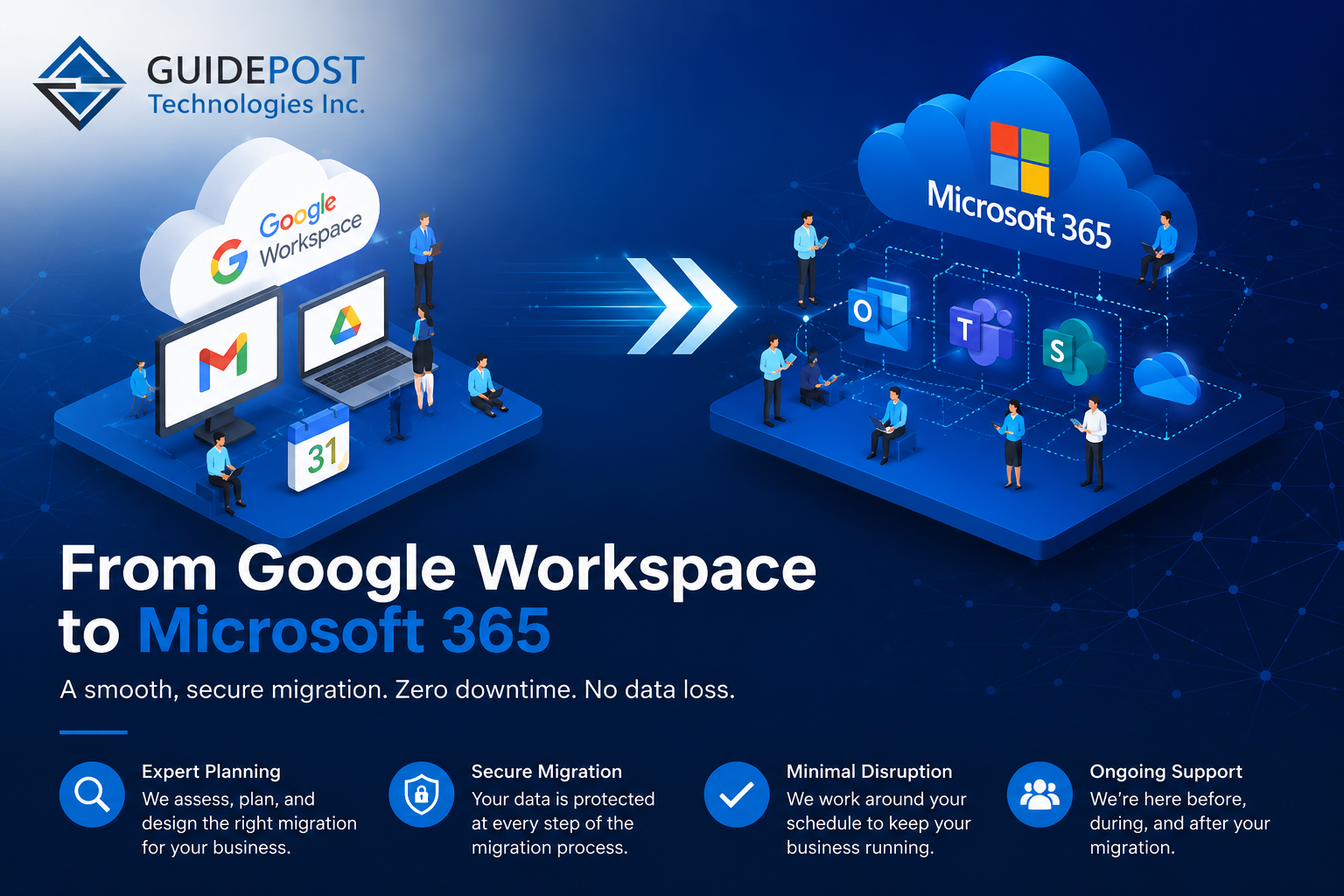
Switching from Google Workspace — Businesses that started on Google Workspace sometimes find that Microsoft 365’s deeper integration with Windows, Teams, and business applications better suits their needs as they grow.
Mergers and acquisitions — Combining two businesses often means combining two separate email and file systems into one unified Microsoft 365 tenant.
Tenant consolidation — Some businesses end up with multiple Microsoft 365 tenants over time, often from acquisitions or poorly planned initial setups, and need to consolidate into a single properly structured environment.
Outdated or poorly configured tenants — Many Edmonton businesses are technically on Microsoft 365 but never had it set up properly — no proper security configuration, no structured SharePoint, inconsistent licensing. A migration to a properly configured tenant solves this.
What a Proper Microsoft 365 Migration Actually Involves
Pre-Migration Assessment
Before anything moves, a thorough assessment of the current environment is essential. This includes cataloguing existing mailboxes, file shares, distribution lists, shared calendars, and any line-of-business applications that integrate with email or file storage. Skipping this step is the single biggest cause of migration problems — you can’t migrate what you haven’t accounted for.
Planning the New Environment
This is where the structure of the new Microsoft 365 tenant gets designed — how SharePoint sites will be organized, what security policies will be applied, how licensing will be assigned, and what the timeline for cutover will look like. A migration plan should specify exactly what moves, in what order, and how disruption will be minimized.
Email Migration
Mailbox migration moves existing email, calendars, and contacts to the new Microsoft 365 environment. There are several approaches depending on the source system and volume of data:
- Cutover migration — all mailboxes move at once, suitable for smaller businesses
- Staged migration — mailboxes move in batches over time, reducing risk for larger environments
- Hybrid migration — running old and new systems simultaneously during transition, typically used for larger or more complex environments
The right approach depends on your business size, how much downtime you can tolerate, and the complexity of your existing email environment.
File and Data Migration
Moving files from a local server, Google Drive, or another platform into SharePoint and OneDrive requires careful planning of folder structure and permissions — not simply dragging and dropping files into the cloud. As we covered in our SharePoint guide, poor folder structure causes ongoing frustration long after the migration is complete. This is the point in the process where that structure gets established correctly.
DNS and Domain Configuration
Your email domain needs to be properly configured to route mail through Microsoft 365 — MX records, SPF, DKIM, and DMARC records all need to be set up correctly. Misconfigured DNS records during migration are a common cause of mail delivery problems, including legitimate email being marked as spam.
Security Configuration
A migration is the ideal time to implement proper security from the start rather than retrofitting it later. This includes enabling MFA on all accounts, configuring conditional access policies, setting up data loss prevention rules, and establishing proper admin role assignments rather than giving everyone global admin access.
User Training and Cutover
Once the new environment is ready, the cutover happens — typically scheduled for evenings or weekends to minimize disruption. Employees need clear communication about what’s changing, how to access their email and files in the new system, and who to contact if something doesn’t look right.
Post-Migration Verification
After cutover, every mailbox, shared file, and integration needs to be verified as working correctly. This includes checking that mail flow is functioning, that file permissions transferred correctly, and that any connected applications still work with the new environment.
Common Microsoft 365 Migration Mistakes
Migrating without a plan — Attempting a migration without a documented plan for what moves, when, and how, almost always results in missed data, confused employees, and extended downtime.
Ignoring DNS propagation time — DNS changes can take up to 48 hours to fully propagate. Migrations planned without accounting for this can result in mail delivery issues during the transition window.
Not communicating with employees — Employees who show up to find their email looks different with no warning waste time figuring out what happened instead of working. Clear advance communication prevents this entirely.
Skipping the security setup — Migrating to a new environment without implementing proper security from day one means starting the new system with the same vulnerabilities as the old one. This is the ideal moment to get security right.
Underestimating file migration complexity — Email migration tools are mature and reliable. File migration — particularly with complex permission structures — is often more complex than businesses expect, especially when moving from an on-premises server with deeply nested folder permissions.
No rollback plan — Migrations occasionally encounter unexpected issues. Having a plan to roll back or pause if something goes wrong prevents a difficult situation from becoming a disaster.
How Long Does a Microsoft 365 Migration Take?
For a typical Edmonton SMB with 10-30 employees, a properly planned migration typically takes:
- Planning and assessment: 1-2 weeks
- Email migration: A few hours to a few days depending on data volume and approach
- File migration: 1-2 weeks depending on data volume and complexity
- Security configuration and testing: 1 week
- Total project timeline: 3-6 weeks from start to full completion
Larger or more complex environments, multi-domain setups like those we discussed in our First Nations IT guide, or migrations involving significant legacy data take longer.
Frequently Asked Questions
How do I migrate to Microsoft 365 from Google Workspace? A Google Workspace to Microsoft 365 migration involves moving email, calendar, contacts, and files using Microsoft’s migration tools or third-party migration services. Planning the new Microsoft 365 structure before migrating — rather than recreating Google’s structure exactly — typically produces a better result.
Will we lose any emails or files during migration? With a properly planned migration, no. Data loss during migration almost always results from inadequate planning, skipping the pre-migration assessment, or rushing the process. A thorough migration plan accounts for every mailbox and file location before anything moves.
Can we keep working during the migration? In most cases, yes — particularly with staged or hybrid migration approaches. Some disruption is typically unavoidable during the final cutover, which is why it’s usually scheduled outside business hours.
Do we need to migrate everything at once? No. Staged migrations allow you to move departments or mailbox groups over time, which can reduce risk and disruption for larger organizations.
What happens to our old email domain and addresses? Your existing email domain and addresses are typically retained and simply reconfigured to route through Microsoft 365. Employees keep their existing email addresses; only the underlying system changes.
How much does a Microsoft 365 migration cost? Costs vary based on the number of mailboxes, data volume, and complexity of the existing environment. Most Microsoft 365 migrations for Edmonton SMBs are priced as a one-time project fee, separate from ongoing managed IT or Microsoft 365 licensing costs.
GuidePost Can Help
GuidePost Technologies plans and executes Microsoft 365 migrations for Edmonton and Sherwood Park businesses — including server-to-cloud migrations, Google Workspace transitions, multi-domain environments, and tenant consolidations. We’ve managed complex migrations including multi-department setups for organizations like Paul First Nation across 11 department-specific domains.
Explore our Microsoft 365 Services →
Call us at 780-851-5000 to book a free migration assessment for your business.
GuidePost Technologies — Managed IT Services, Cybersecurity, Cloud Computing, and Network Support for Edmonton and Alberta Businesses.